How to Download Anime Clips from animeclips.online
animeclips.online is a free anime clip library built for AMV editors. The whole point of the site is to skip the hassle of ripping anime episodes yourself: every clip is pre-cut, in its original framerate, with no logos, no watermarks, and ready to drag straight into your editor. This guide walks through the full download flow, from finding a clip to opening it in your editing software.
Quick answer Go to the gallery, find the show you want, hover any clip to preview it, then click the download icon on the clip card. Need a stack of clips at once? Toggle Quick Select (QS) mode at the top of the page, check off everything you want (Ctrl+click and Shift+click work for bulk selection too), then hit batch download.
Heads up We provide pre-cut clips, but we also pre-select which cuts make it into the library. In the past we focused only on the scenes we felt were most useful for AMVs and left out cuts that felt redundant or low-impact. Over time, as more people started using our clips for editing beyond just AMVs, we have increased the selection sensitivity and kept more material. For upcoming releases we are aiming to include around 95% of all cuts, so you will have a lot more to work with.
Find the anime clip you want
Head to animeclips.online/clips. The gallery shows every anime in our library as a cover card. You can scroll the full list, use the search bar at the top, or open the filter pills (Active Packs, Early Releases, Categories) to narrow things down. Clicking any cover opens that anime's page with all the clips for that show.
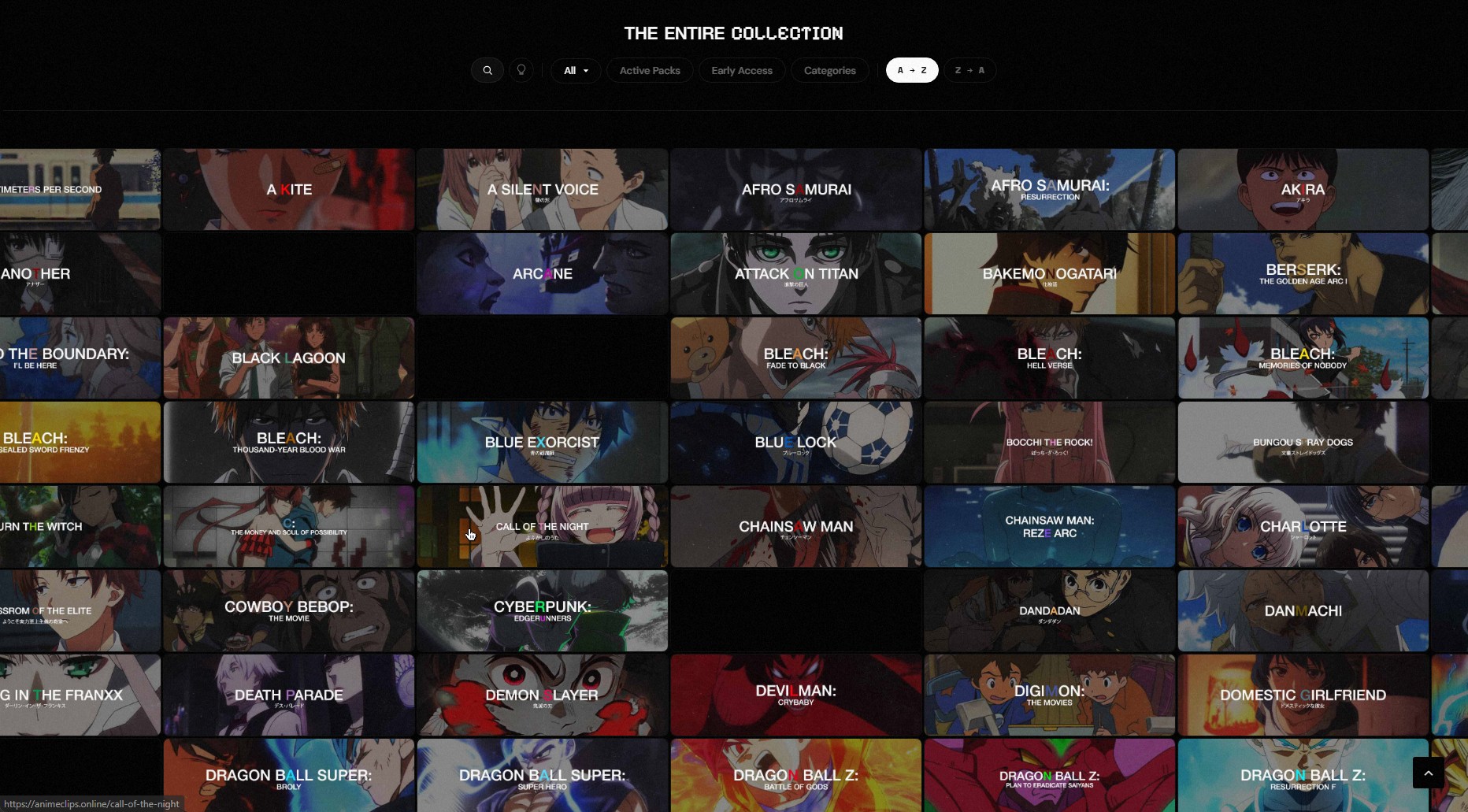
If you already know the show you want, you can also jump straight to the anime's URL, for example animeclips.online/jujutsu-kaisen or animeclips.online/blue-lock. The clip list for that show loads with all the scenes already cut and ready.
Preview before you download (Quick Preview)
Hovering over any clip kicks off a silent preview of the actual footage. No click, no popup, no waiting on a YouTube embed: the clip starts streaming right inside the card. This is a huge time saver when you are picking the right scene out of a long list, because you do not have to download a bunch of clips just to see which one fits your edit.
While a Quick Preview is running, a small Quick Preview menu appears with four options:
- Bookmark clip: save it for later from your account.
- Download clip: grab the .mp4 right away (covered in Step 3).
- Save as thumbnail: save the current frame as a still image. Pause the Quick Preview at any timestamp first, then hit Save as thumbnail to grab exactly the frame you want.
- Stats for nerds: codec, resolution, framerate, and bitrate of the clip.
Quick Preview shipped in May 2026 and is on by default. If you want the old behavior (static thumbnails only), you can disable it from the settings dropdown that appears when you hover the Quick Select button.
Download a single anime clip
There are two ways to grab any single clip, both end up with the same .mp4 file on your computer. Pick whichever feels natural.
Method 1: Right-click on a thumbnail. A small Download button shows up. Click it and the .mp4 starts coming down.
Method 2: Right-click on the video player. If you have a clip open in the player, right-clicking inside the player surfaces the same Download button.
The file lands in whatever folder your browser uses for downloads, which is usually your Downloads folder. Filenames follow a "[Show Name] [Episode] [Timestamp].mp4" pattern so they stay organized once you have a stack of them.
Download multiple anime clips at once (Quick Select)
If you need 10 or 20 clips for a project, downloading one at a time gets old fast. Quick Select mode (QS for short) fixes that.
Toggle QS mode using the button at the top of any gallery page. Every clip card now shows a checkbox in the corner. Click any clips you want to add to your selection, watch the counter at the top tick up, then hit the batch download button.
For faster bulk picking, two standard keyboard shortcuts also work the same way they do in your file explorer:
- Ctrl+click (Cmd+click on Mac) toggles individual cards on or off without losing your existing selection.
- Shift+click selects every card between the last clicked card and the new one, so you can grab a long range in two clicks.
These shortcuts also work without QS mode being toggled on. You can hold Ctrl or Shift while clicking on a clip at any point on the gallery and the mode kicks in around your selection, so you do not have to flip the QS toggle first if you only need to grab a few clips.
This is the fastest way to pull a full set of clips for a single project. Pick everything you need from a show in one session, then walk away while it downloads.
QS and Quick Preview can run at the same time. You do not have to pick one or the other. Both modes can be active together, so you can hover-preview each clip to confirm the scene while you check off the ones you want for batch download. This is the most efficient way to scan a long clip list and grab a curated set in one pass.
What you actually get
Every clip on animeclips.online is:
- .mp4 format, ready for After Effects, Premiere Pro, DaVinci Resolve, Vegas, CapCut, or any editor that takes standard video
- Original framerate, usually 23.976fps for TV anime and 24fps for movies. Not interpolated, not converted, no 60fps fakery
- Source quality, typically 1920x1080 or 1440x1080 depending on how the broadcast was mastered
- No logos, no watermarks, no extra re-encoding artifacts
- Pre-cut on scene boundaries so you can drop them straight on your timeline without trimming first
Coming soon Future clip uploads will include dual audio when the source has it, meaning both the original Japanese track and the English dub baked into the same .mp4 file. One thing to keep in mind: the on-site stream player cannot switch between audio tracks (a limitation of the player we use on the website), so the in-browser preview will only play one of the two languages. But once you download the .mp4 and drop it onto your editing timeline, you will see two separate audio tracks, one for each language. From there you can mute one and keep the other, or use both, depending on your edit.
Using Anime Clips in Your Editor (After Effects, Premiere Pro, CapCut, and More)
Every anime clip downloads as a standard .mp4 file. Drop the clip on your timeline in After Effects, Premiere Pro, Vegas, CapCut, DaVinci Resolve, or whatever AMV editor you use, and it works out of the box. No conversion, no transcoding, no codec installs needed.
For the encoding side of things (how to render your final AMV so it does not lose quality on the way out, and how to set up the right project sequence so your timeline matches the anime clip framerate), I have a separate guide on AMV scripting and encoding that walks through every setting.
Troubleshooting
A few common issues and quick fixes:
- Download does not start. Your browser may have blocked it. Check for a blocked-popup notice in the URL bar. Allow downloads from animeclips.online and try again.
- Quick Preview is laggy. Could be your internet, or a busy browser tab eating CPU. Refresh the page, close other tabs, or just disable Quick Preview from the settings dropdown if you prefer static thumbnails.
- The clip I want is not in the library. We add new shows regularly but not every season is fully covered. For shows we have not released yet, our built-in nyaa.si search helps you find the raw episodes elsewhere, which you can then cut yourself.
- I want a specific scene from a show we have. Browse the show's page, then use Ctrl+F (or Cmd+F on Mac) in your browser to search timestamps or character names mentioned in the clip filenames.
- QS batch download grabs the wrong clips. Refresh the page once with QS mode off, then re-enable it. Sometimes a leftover selection state can mix in unwanted clips.
A library that has been growing since 2017
Before this site was animeclips.online, it was weeklyamvcontest, launched back in 2017 as one of the first organized AMV editing competitions on YouTube. The project went through several rebrands and community partnerships over the years (anime base, anime soul, weeklyamvcontest:re) before settling into its current form as animeclips.online around 2020 to 2021. That history is why the clip library is this comprehensive: some of the older releases were uploaded years before the rebrand and are still part of the gallery today.
If you want the full story of how it all came together, I made a video about it:

FAQ
Is animeclips.online free to use?
Yes. The clip library is free to browse and download. We do have a Patreon for people who want to support the project, but downloading clips does not require a subscription.
Do I need an account to download clips?
No account needed to download. You can browse the gallery and grab clips as a guest. An account just gives you extra features (profile, follows, bookmarks, etc.) on top.
What format are the clips in?
Every clip is a standard .mp4 file, encoded at 15 to 20 Mbps, in the show's original framerate (usually 23.976fps), at 1080p or 1440x1080 source resolution. They drop straight into After Effects, Premiere Pro, DaVinci Resolve, Vegas, CapCut, and any other editor that takes mp4.
Can I use animeclips.online clips for monetized AMVs?
You can use the clips for any AMV, monetized or not. Just keep in mind that the underlying anime is still owned by its studio, so monetized AMVs can still get hit with YouTube copyright claims regardless of where you sourced the clip. That part is on you to navigate.
How often are new clips added?
We aim for a new release roughly every 3 months when possible, depending on what is currently airing and what the community is asking for. The team is small and cuts are still done by hand, so the exact cadence depends on how much content each release covers.
What if the show I want is not in the library?
For shows we have not released yet, our built-in nyaa.si search at animeclips.online/nyaa helps you find the raw episodes elsewhere. From there you can cut your own clips. You can also suggest shows on our socials and we will consider them for future releases. If you want to make sure your suggestion gets bumped onto our release priorities, our Ultra tier supporters get to officially submit one anime per month that we add to the list. Full details on the perks page.
Can I download multiple clips at once?
Yes. Toggle Quick Select (QS) mode at the top of any gallery page, check off every clip you want, and hit batch download. All selected clips download as separate .mp4 files. The Ctrl+click (Cmd+click on Mac) and Shift+click selection shortcuts also work without toggling QS mode on first, so you can start a multi-clip selection at any time and the mode kicks in around your selection.