How to Convert MKV to MP4 Without Re-encoding
If you want the quick answer: you do not really need to "convert" an MKV in the slow way that ruins quality. You can remux it, which repackages the video into an MP4 in a few seconds with zero quality loss, using a free tool called AMVtool. Below I explain what an MKV actually is, what remuxing means, and the exact steps I use to turn an MKV into an editor-friendly MP4.

What is an MKV file?
MKV (its full name is Matroska) is a container. Raw anime is very often shared as MKV because it can hold very high quality video along with several audio and subtitle tracks in one file. The downside is that a lot of video editors do not open MKV files properly, which is where most people get stuck.
What is a container, and how is MP4 different?
Think of a container as a box. The box holds your video, your audio, and sometimes subtitles. MKV and MP4 are just two different boxes, and the video and audio inside them can be exactly the same.
The difference is compatibility. MP4 is the box that works almost everywhere: editing software, phones, websites, social media. MKV is more flexible but far less supported. So most of the time, the goal is simply to move the same content from the MKV box into the MP4 box.
What does remuxing mean?
Remuxing means taking the existing video and audio and repackaging them into a new container without re-encoding. Not a single frame gets touched, so there is no quality loss at all, and it finishes in seconds.
Compare that to re-encoding, which actually decodes the video and compresses it all over again. That is slower and always costs you a little quality. Here is the part most people miss: you usually do not need to re-encode just to go from MKV to MP4. You only need to swap the box.
Why convert MKV to MP4?
The main reason is editor compatibility. Most editing programs either will not import an MKV or behave badly with it. (After Effects 2019 is one of the few that reads MKV directly.) MP4 just works. It is also the safer choice for uploading or sharing.
How to convert MKV to MP4 without re-encoding (AMVtool)
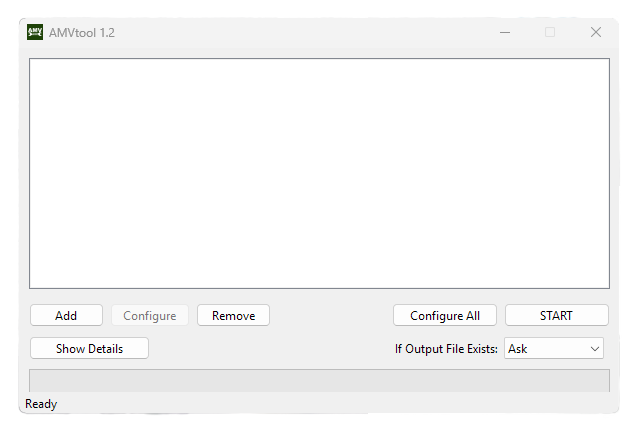
The tool I use is a free program called AMVtool, an open-source GUI for FFmpeg made for video editors. Here is the whole process:
- Click Add and select your MKV file.
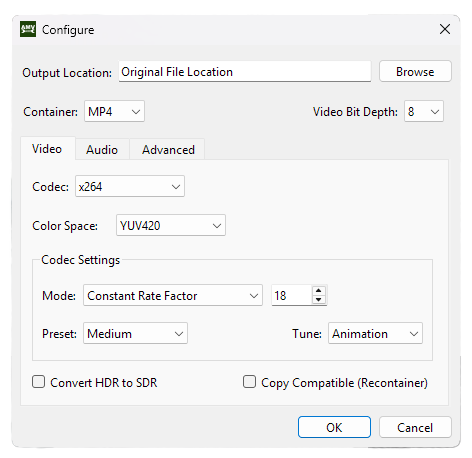
- Click Configure and set the Container to MP4.
- Leave the video codec on Copy. This is the remuxing part, and it is what keeps the quality identical. If your editor needs a specific codec, you can pick something like x264 instead, but that re-encodes and takes longer.
- Click Start. In a few seconds you have a ready-to-edit MP4.
A few things to know before you remux
- Remuxing works because the video inside most anime MKVs is already an MP4-friendly format (usually H.264 or H.265). That is why Copy just works.
- Once in a while the audio is in a format MP4 does not like, such as FLAC. If the sound does not come through, set only the audio to re-encode to AAC. Your video still stays untouched and lossless.
- Subtitles inside the MKV usually get dropped in the MP4. For editing that is fine, since you do not want burned-in text over your footage anyway.
- A remuxed file stays about the same size, because it is the same video. Re-encoding can make it smaller, but you pay for it in quality and time.
What else can AMVtool do?
Remuxing is just one part of it. AMVtool is a free, open-source front end for FFmpeg built specifically for video editors, so it is worth keeping around for a few more reasons:
- Batch queue: drop in a whole folder of clips and remux or convert them all at once instead of one by one.
- Editor-friendly export codecs: when you actually do need to re-encode, it exports to formats editors love, like DNxHR, ProRes, Ut Video, x264, and x265.
- It fixes color for you: it picks the correct color matrix automatically, which is something many editors get wrong by hand and end up with washed-out or oversaturated footage.
- HDR handling: it can pass HDR through or convert it down to SDR.
- Multiple audio tracks, a readout of your video bit depth, and it runs on Windows, macOS, and Linux.
One handy tip: Configure sets options for the single file you have selected, while Configure All applies your settings to every file in the queue, which is what makes the batch workflow fast.
Where to get the clips in the first place
If you still need the raw anime to work with, my guide on where to download anime clips covers finding sources and grabbing them the right way.
FAQ
Does converting MKV to MP4 lose quality?
Not if you remux it. Remuxing copies the video without touching it, so it stays identical. You only lose a little quality if you re-encode.
Is remuxing the same as converting?
It is a type of converting, but it only changes the container (the box), not the video itself. That is why it is instant and lossless.
Why will my MKV not open in my editor?
Most editors do not support the MKV container. Remuxing it to MP4 fixes that without changing the footage.
Is AMVtool free?
Yes, it is completely free.
How long does it take?
Remuxing usually takes a few seconds to a minute. Re-encoding the same file could take many minutes.